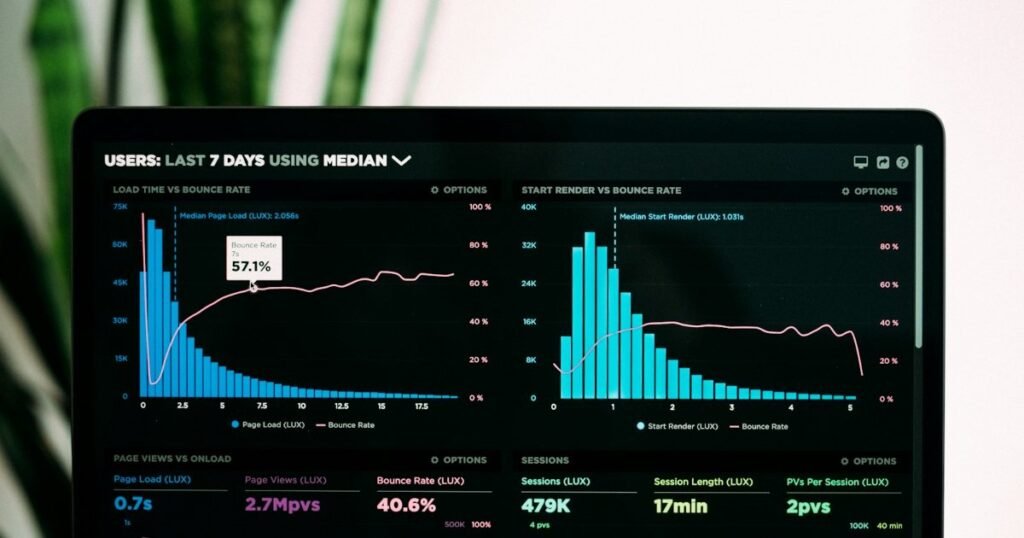
A slow website costs you twice: visitors leave before the page loads, and Google’s page experience signals count against you. The good news is that most WordPress sites are slow for the same handful of reasons, and you can fix the biggest ones without rebuilding anything.
These are the fixes I apply on client sites, roughly in order of impact. Before you start, measure.
Measure first: what Core Web Vitals actually mean
Google’s Core Web Vitals are three measurements taken from real visitors in Chrome:
| Metric | What it measures | “Good” is |
|---|---|---|
| LCP (Largest Contentful Paint) | How long until the main content (usually the hero image or headline) appears | 2.5 seconds or less |
| INP (Interaction to Next Paint) | How quickly the page responds when someone taps or clicks | 200 milliseconds or less |
| CLS (Cumulative Layout Shift) | How much the layout jumps around while loading | 0.1 or less |
Run your homepage and one or two key pages through PageSpeed Insights. Look at the field data at the top (real users) before the lab score underneath. Then check the Core Web Vitals report in Google Search Console to see which groups of pages are failing.
1. Start with hosting and PHP version
No plugin can fix a slow server. If your Time To First Byte (TTFB) is consistently above roughly 800 ms, the server is the bottleneck. Move off crowded shared hosting if you can, make sure you are on a PHP version that still gets security updates (check php.net; ideally 8.3 or newer), and choose a data centre close to your audience.
2. Turn on full-page caching
Without caching, WordPress builds every page from the database on every visit. A page cache stores the finished HTML and serves it instantly. Use your host’s built-in cache (LiteSpeed Cache on LiteSpeed servers) or a plugin like WP Rocket. Only use one caching plugin at a time.
3. Fix your images
Images are the biggest cause of a slow LCP on most sites I audit.
- Resize images to the size they are displayed at. A 4000px photo shown at 800px wastes bandwidth.
- Serve WebP or AVIF instead of large JPEGs and PNGs.
- Lazy-load images below the fold, but never lazy-load the hero image. Load it eagerly with
fetchpriority="high". - Always set width and height attributes so the browser reserves space (this also fixes CLS).
4. Remove plugins you do not need
Every plugin can add CSS, JavaScript and database queries to every page. Deactivate plugins you are not using, replace heavy “do everything” plugins with lighter ones, and check which plugins load assets on pages where they are not needed (a contact form plugin loading on every blog post is a classic example).
5. Defer and delay JavaScript
JavaScript blocks rendering and hurts INP. Defer non-critical scripts so they do not block the first paint, and delay third-party scripts (chat widgets, heatmaps, social embeds) until the visitor interacts with the page. WP Rocket and Perfmatters both have options for this, but test carefully because aggressive settings can break sliders and menus.
6. Reduce unused CSS
Page builders and themes often ship hundreds of kilobytes of CSS that a single page never uses. Use your caching plugin’s “remove unused CSS” option or generate critical CSS for above-the-fold content. In Elementor, turn on the performance experiments that load assets only where widgets are used.
7. Host fonts locally and load fewer of them
Each font family and weight is another file. Limit yourself to two families and the weights you actually use, host them on your own domain, preload the main one, and use font-display: swap so text appears immediately.
8. Use a CDN
A CDN serves your static files (images, CSS, JS) from a location near the visitor. Cloudflare’s free plan is enough for most small business sites. If your audience is in several countries, the improvement can be large.
9. Clean up the database
Years of post revisions, spam comments, expired transients and leftover tables from deleted plugins slow down database queries. Limit revisions, schedule regular cleanups, and check the size of autoloaded options, which load on every single request.
10. Stop layout shift
CLS is usually caused by images without dimensions, ads or embeds without reserved space, cookie banners that push content down, and web fonts swapping in with a different size. Reserve space for anything that loads late, and show banners as overlays instead of inserting them above content.
11. Keep the homepage hero light
Autoplaying background videos and multi-slide carousels in the hero are the most common reason I see for a failing LCP. A single, well-compressed image with a clear headline almost always loads faster and converts better.
12. Re-test and monitor
Lab scores change from run to run, so test a few times and compare. Field data in Search Console updates over a 28-day window, so give real-user numbers a few weeks to reflect your changes. Re-check after every major plugin or theme update.
Where to start if you only have an hour
- Turn on page caching.
- Compress and resize the hero image, and stop it from lazy-loading.
- Deactivate plugins you do not use.
- Delay third-party scripts.
Those four steps fix most of the problems I see. Speed also affects whether Google indexes and ranks your pages at all, which I cover in why your website is not showing up on Google.
If your site is still failing Core Web Vitals after this, get in touch and I will find out what is holding it back.
Need help with this?
I work with businesses in the US, UK and Europe as a freelance SEO consultant, with dedicated WordPress SEO and WordPress speed optimization services. If your site is slow or has been hacked, send me the address and I will tell you what I would fix first. Start a project →